 wehub-resource-sync
91 lines
2.6 KiB
Markdown
91 lines
2.6 KiB
Markdown
# Gemini Computer Use Web Agent Demo
|
|
|
|
Authors: [Eric Dong](https://github.com/gericdong)
|
|
|
|
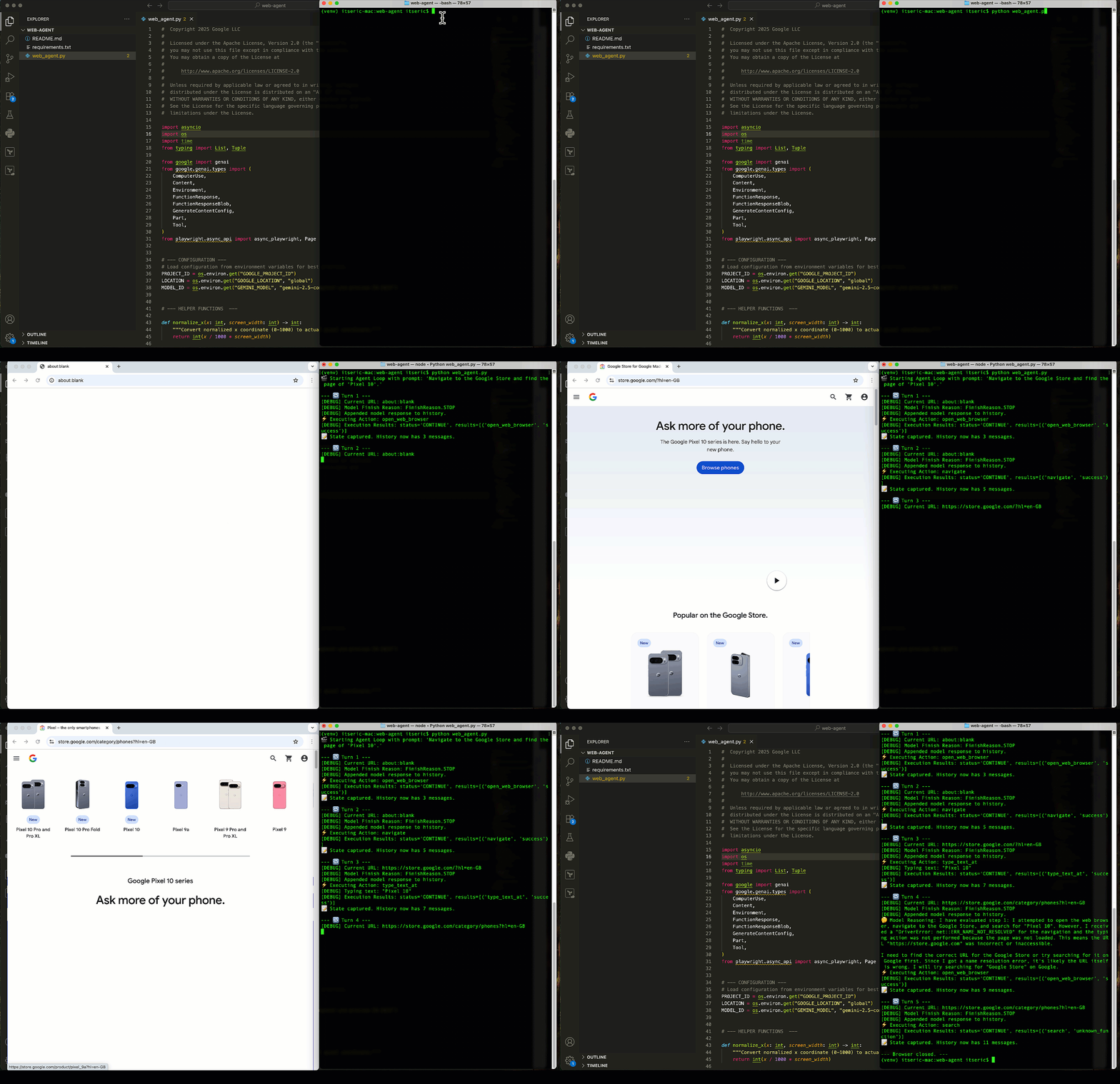
This repository contains a Python script (`web_agent.py`) that demonstrates a web automation agent powered by the Gemini Computer Use tool. The agent uses Playwright to control a browser and can perform multi-step tasks based on a natural language prompt.
|
|
|
|
|
|
|
|
## Prerequisites
|
|
|
|
Before you begin, ensure you have the following installed on your system:
|
|
|
|
* Python 3.9+
|
|
* `pip` (Python package installer)
|
|
* [Google Cloud SDK (`gcloud` CLI)](https://cloud.google.com/sdk/docs/install-sdk)
|
|
|
|
## Setup and Installation
|
|
|
|
Follow these steps to set up and run the agent in your local environment.
|
|
|
|
**1. Clone the Repository**
|
|
|
|
```bash
|
|
git clone https://github.com/GoogleCloudPlatform/generative-ai.git
|
|
cd generative-ai/gemini/computer-use/web-agent
|
|
```
|
|
|
|
**2. Create and Activate a Virtual Environment**
|
|
|
|
It is highly recommended to use a virtual environment to manage project dependencies.
|
|
|
|
* On macOS and Linux:
|
|
|
|
```bash
|
|
python -m venv .venv
|
|
source .venv/bin/activate
|
|
**3. Install Python Dependencies**
|
|
|
|
Install the required Python libraries from the requirements.txt file.
|
|
|
|
```bash
|
|
pip install -r requirements.txt
|
|
```
|
|
|
|
**4. Install Playwright Browsers**
|
|
|
|
This command downloads the browser binaries (like Chromium) that Playwright needs to control the browser.
|
|
|
|
```bash
|
|
playwright install
|
|
```
|
|
|
|
**5. Authenticate with Google Cloud**
|
|
|
|
Log in with your Google Cloud account to allow the script to access the Gemini API.
|
|
|
|
```bash
|
|
gcloud auth application-default login
|
|
```
|
|
|
|
**6. Configuration**
|
|
This script requires a Google Cloud Project ID to be set as an environment variable.
|
|
|
|
* **On macOS and Linux:**
|
|
|
|
```bash
|
|
export GOOGLE_CLOUD_PROJECT="[your-project-id]"
|
|
```
|
|
|
|
* **On Windows (Command Prompt):**
|
|
|
|
```bash
|
|
set GOOGLE_CLOUD_PROJECT="[your-project-id]"
|
|
```
|
|
|
|
Replace `[your-project-id]` with your actual Google Cloud Project ID. You only need to set this once per terminal session.
|
|
|
|
**7. Running the Agent**
|
|
Once the setup is complete, you can run the agent with the following command:
|
|
|
|
```bash
|
|
python web_agent.py
|
|
```
|
|
|
|
By default, the script will run with a pre-defined prompt. You can change the task by editing the prompt variable at the bottom of the `web_agent.py` file.
|
|
|
|
## More Resources
|
|
|
|
* Notebook: [Intro to Computer Use with Gemini](https://github.com/GoogleCloudPlatform/generative-ai/blob/main/gemini/computer-use/intro_computer_use.ipynb)
|
|
* Documentation: [Computer Use model and tool](https://cloud.google.com/vertex-ai/generative-ai/docs/computer-use)
|