 wehub-resource-sync
Gemini Computer Use Web Agent Demo
Authors: Eric Dong
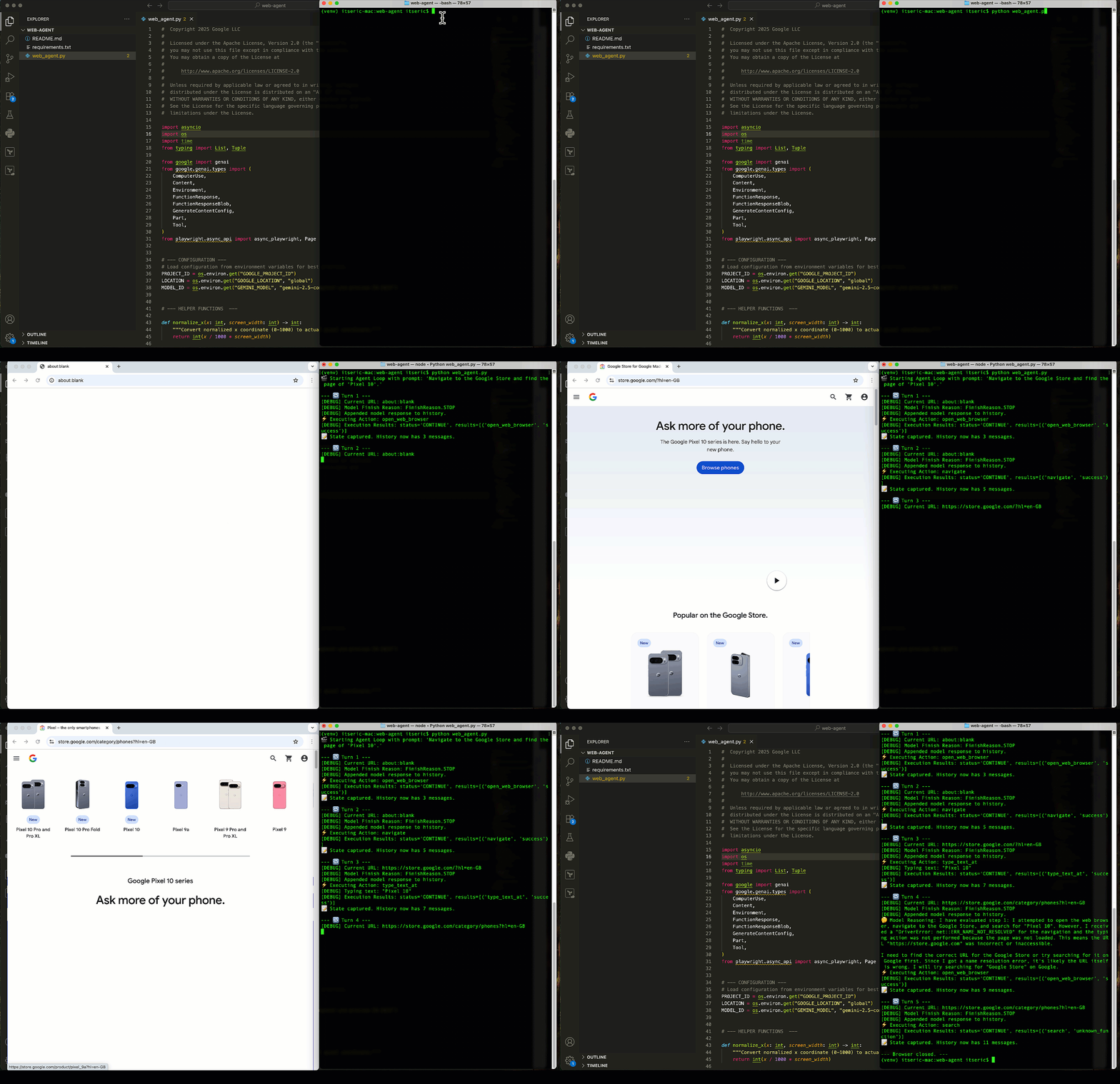
This repository contains a Python script (web_agent.py) that demonstrates a web automation agent powered by the Gemini Computer Use tool. The agent uses Playwright to control a browser and can perform multi-step tasks based on a natural language prompt.
Prerequisites
Before you begin, ensure you have the following installed on your system:
- Python 3.9+
pip(Python package installer)- Google Cloud SDK (
gcloudCLI)
Setup and Installation
Follow these steps to set up and run the agent in your local environment.
1. Clone the Repository
git clone https://github.com/GoogleCloudPlatform/generative-ai.git
cd generative-ai/gemini/computer-use/web-agent
2. Create and Activate a Virtual Environment
It is highly recommended to use a virtual environment to manage project dependencies.
-
On macOS and Linux:
python -m venv .venv
source .venv/bin/activate
3. Install Python Dependencies
Install the required Python libraries from the requirements.txt file.
pip install -r requirements.txt
4. Install Playwright Browsers
This command downloads the browser binaries (like Chromium) that Playwright needs to control the browser.
playwright install
5. Authenticate with Google Cloud
Log in with your Google Cloud account to allow the script to access the Gemini API.
gcloud auth application-default login
6. Configuration This script requires a Google Cloud Project ID to be set as an environment variable.
-
On macOS and Linux:
export GOOGLE_CLOUD_PROJECT="[your-project-id]" -
On Windows (Command Prompt):
set GOOGLE_CLOUD_PROJECT="[your-project-id]"
Replace [your-project-id] with your actual Google Cloud Project ID. You only need to set this once per terminal session.
7. Running the Agent Once the setup is complete, you can run the agent with the following command:
python web_agent.py
By default, the script will run with a pre-defined prompt. You can change the task by editing the prompt variable at the bottom of the web_agent.py file.
More Resources
- Notebook: Intro to Computer Use with Gemini
- Documentation: Computer Use model and tool