wehub-resource-sync
f36e2104d8
wehub-resource-sync
f36e2104d8
tests / ragflow_tests_infinity (push) Has been cancelled
tests / ragflow_tests_elasticsearch (push) Has been cancelled
sep-tests / ragflow_preflight (push) Has been cancelled
sep-tests / ragflow_tests_infinity (push) Has been cancelled
sep-tests / ragflow_tests_elasticsearch (push) Has been cancelled
tests / ragflow_preflight (push) Has been cancelled
1.3 KiB
1.3 KiB
sidebar_position, slug, sidebar_custom_props
| sidebar_position | slug | sidebar_custom_props | ||
|---|---|---|---|---|
| 30 | /embed_agent_into_webpage |
|
Embed Agent into webpage
You can use iframe to embed an agent into a third-party webpage.
- Before proceeding, you must acquire an API key; otherwise, an error message would appear.
- On the Agent page, click an intended agent to access its editing page.
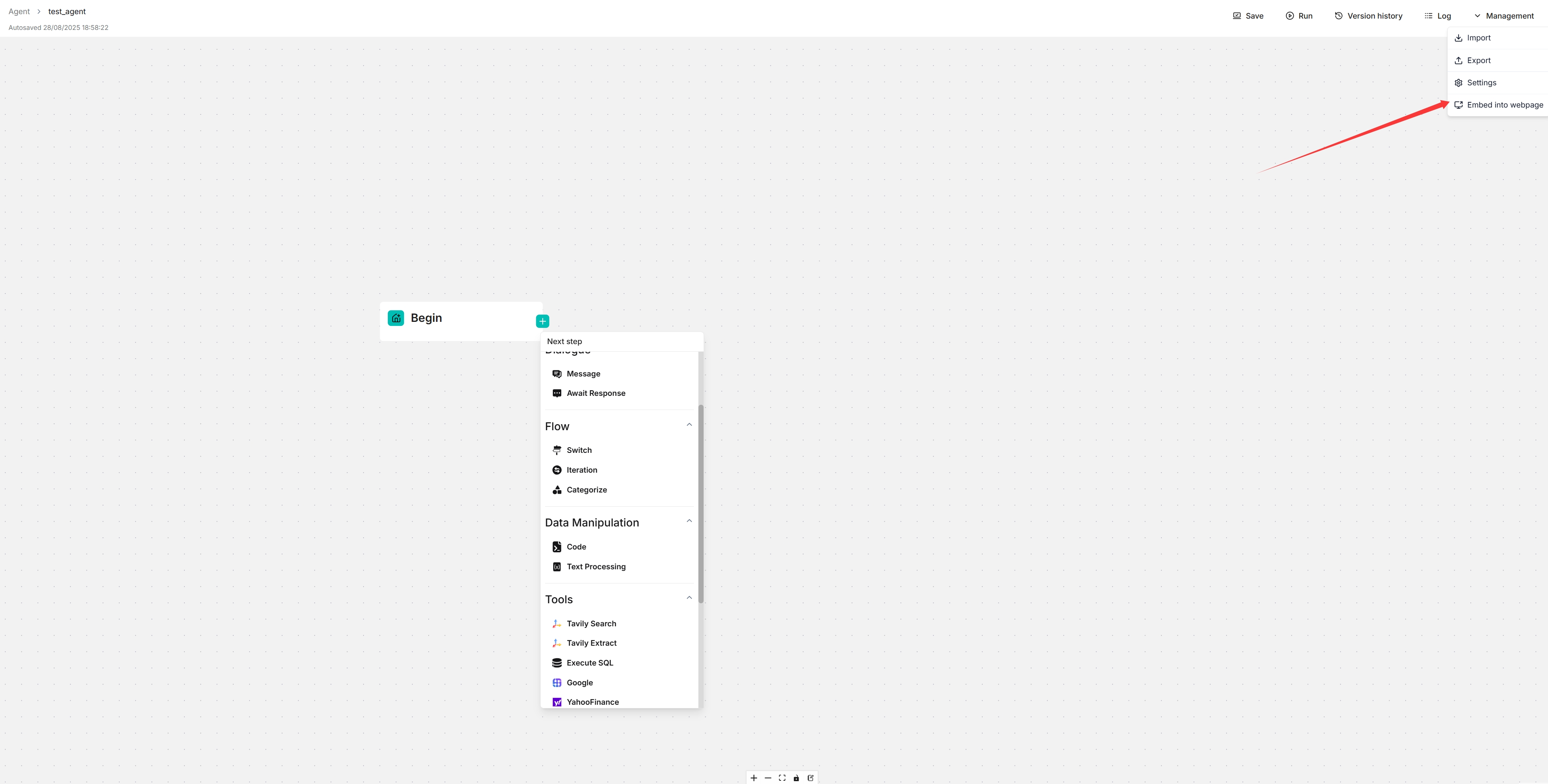
- Click Management > Embed into webpage on the top right corner of the canvas to show the Embed into webpage dialog.
- Configure your embed options:
- Embed Type: Choose between Fullscreen Chat (traditional iframe) or Floating Widget (Intercom-style)
- Theme: Select Light or Dark theme (for fullscreen mode)
- Hide avatar: Toggle avatar visibility
- Enable Streaming Responses: Enable streaming for widget mode
- Locale: Select the language for the embedded agent
- Copy the generated iframe code and embed it into your webpage.
- Chat in new tab: Click the "Chat in new tab" button to preview the agent in a separate browser tab with your configured settings. This allows you to test the agent before embedding it.