 wehub-resource-sync
239 lines
14 KiB
Markdown
239 lines
14 KiB
Markdown
# GenWealth Demo App
|
|
|
|
**Authors:** [Paul Ramsey](https://github.com/paulramsey) and [Jason De Lorme](https://github.com/jjdelorme)
|
|
|
|
<img align="right" style="padding-left: 10px;" src="https://storage.googleapis.com/github-repo/generative-ai/sample-apps/genwealth/images/genwealth-logo.png" width="35%" alt="GenWealth Logo"> This demo showcases how you can combine the data and documents you already have and the skills you already know with the power of [AlloyDB AI](https://cloud.google.com/alloydb/ai?hl=en), [Vertex AI](https://cloud.google.com/vertex-ai?hl=en), [Cloud Run](https://cloud.google.com/run?hl=en), and [Cloud Functions](https://cloud.google.com/functions?hl=en) to build trustworthy Gen AI features into your existing applications.
|
|
|
|
You will implement an end-to-end "Knowledge Worker Assist" use case for a fictional Financial Services company called GenWealth. GenWealth is an investment advisory firm that combines personalized service with cutting-edge technology to deliver tailored investment strategies to their clients that aim to generate market-beating results.
|
|
|
|
You will add 3 new Gen AI features to GenWealth's existing Investment Advisory software:
|
|
|
|
1. First, you will improve the investment search experience for GenWealth's Financial Advisors using semantic search powered by AlloyDB AI.
|
|
2. Second, you will build a Customer Segmentation feature for GenWealth's Marketing Analysts to identify prospects for new products and services.
|
|
3. Third, you will build a Gen AI chatbot that will supercharge productivity for GenWealth's Financial Advisors.
|
|
|
|
This demo highlights AlloyDB AI's integration with [Vertex AI LLMs](https://cloud.google.com/model-garden?hl=en) for both embeddings and text completion models. You will learn how to query AlloyDB with natural language using embeddings and vector similarity search, and you will build the backend for a RAG-powered Gen AI chatbot that is grounded in your application data.
|
|
|
|
## Tech Stack
|
|
|
|
The GenWealth demo application was built using:
|
|
|
|
- [AlloyDB for PostgreSQL](https://cloud.google.com/alloydb?hl=en) 14+
|
|
- [Vertex AI](https://cloud.google.com/vertex-ai?hl=en) LLMs ([gemini-2.0-flash-001](https://cloud.google.com/vertex-ai/generative-ai/docs/model-reference/gemini), [textembeddings-gecko@003](https://cloud.google.com/vertex-ai/generative-ai/docs/model-reference/text-embeddings)
|
|
- Vertex AI [Agent Builder](https://cloud.google.com/products/agent-builder?hl=en)
|
|
- [Document AI](https://cloud.google.com/document-ai?hl=en) (OCR processor)
|
|
- [Cloud Run](https://cloud.google.com/run?hl=en) (2nd generation)
|
|
- [Cloud Functions](https://cloud.google.com/functions?hl=en) (Python 3.11+)
|
|
- [Google Cloud Storage](https://cloud.google.com/storage)
|
|
- [Eventarc](https://cloud.google.com/eventarc/docs)
|
|
- [Pub/Sub](https://cloud.google.com/pubsub?hl=en)
|
|
- [LangChain](https://www.langchain.com/) 0.1.12+
|
|
- [Node](https://nodejs.org/en) 20+
|
|
- [Angular](https://angular.io/) 17+
|
|
|
|
## Deploying the GenWealth Demo Application
|
|
|
|
1. Login to the [Google Cloud Console](https://console.cloud.google.com/).
|
|
|
|
1. [Create a new project](https://developers.google.com/maps/documentation/places/web-service/cloud-setup) to host the demo and isolate it from other resources in your account.
|
|
|
|
1. [Switch](https://cloud.google.com/resource-manager/docs/creating-managing-projects#identifying_projects) to your new project.
|
|
|
|
1. [Activate Cloud Shell](https://cloud.google.com/shell/docs/using-cloud-shell) and confirm your project by running the following commands. Click **Authorize** if prompted.
|
|
|
|
```bash
|
|
gcloud auth list
|
|
gcloud config list project
|
|
```
|
|
|
|
1. Clone this repository and navigate to the project root:
|
|
|
|
```bash
|
|
cd
|
|
git clone https://github.com/GoogleCloudPlatform/generative-ai.git
|
|
cd generative-ai/gemini/sample-apps/genwealth/
|
|
```
|
|
|
|
1. In a separate tab, navigate to <https://ipv4.icanhazip.com/> and write down your device's public IP. You will need this in the next step.
|
|
|
|
1. **IMPORTANT:** Use `vim` or `nano` to update the following three values in the `./env.sh` file to match your environment. Leave the rest as default.
|
|
|
|
```bash
|
|
export REGION="us-central1"
|
|
export ZONE="us-central1-a"
|
|
export LOCAL_IPV4="X.X.X.X" # Your device's public IP from the previous step
|
|
```
|
|
|
|
1. Run the `./install.sh` script.
|
|
|
|
> NOTE: The script updates a few organization policies that may or may not apply to your organization. You can ignore errors related to policies that don't exist in your environment, or you can skip all org policy updates by running `./install.sh --skip-org-policy-updates`.
|
|
|
|
1. When prompted, enter a password you will remember for the AlloyDB postgres user and the pgAdmin demo user. **Remember these passwords - you will need them later**.
|
|
|
|
1. Grab some coffee or tea. The script will provision all the necessary back-end resources, which usually takes about 30-35 minutes.
|
|
|
|
1. When prompted (after about 30 minutes), enter the `configId` for the Vertex AI Search widget. Retrieve the `configId` by following these steps:
|
|
|
|
- Navigate to Vertex AI Search in the console.
|
|
- **IMPORTANT:** Click to accept terms and activate the API.
|
|
- Click `Apps` in the left hand navigation to view the list of apps.
|
|
- Click into the `search-prospectus` app.
|
|
- Select `Integration` from the left-hand menu.
|
|
- Scroll down until you see the `configId` for the gen-search-widget.
|
|
- Copy just the UUID without the quotes (i.e. `4205ae6a-434e-695e-aee4-58f500bd9000`).
|
|
- Keep this window open. You will need it in the next step.
|
|
|
|
1. When the build is complete, it will display a URL where you can access the UI. In the same interface where you copied the `configId`, add the domain (without the leading `https://` or trailing slash) as an allowed domain for the widget. Be sure to click `Save`. Example: `genwealth-420u2zdq69-uc.a.run.app`
|
|
|
|
1. You can now choose to explore the demo environment from the front end or the back end (or both).
|
|
|
|
- [Front End Demo Walkthrough](./walkthroughs/frontend-demo-walkthrough.md)
|
|
- [Back End Demo Walkthrough](./walkthroughs/backend-demo-walkthrough.md)
|
|
|
|
### Troubleshooting
|
|
|
|
1. If you get an error during install saying, `HTTPError 412: One or more users named in the policy do not belong to a permitted customer.`, or if you are unable to view the PDFs by clicking the PDF icon in the Research interface, re-run the following command:
|
|
|
|
```bash
|
|
source ./env.sh
|
|
gcloud storage buckets add-iam-policy-binding gs://${PROJECT_ID}-docs \
|
|
--member=allUsers --role=roles/storage.objectViewer
|
|
```
|
|
|
|
1. If you get an error saying, `Configuration is not authorized on "genwealth-xxxxxxxxx-uc.a.run.app".` when trying to use the search widget in the Research interface, ensure the domain is allowed to access the widget in the Vertex AI Search Integrations page, and ensure you have accepted the usage terms and activated the API (see steps 11 and 12).
|
|
|
|
## Architecture
|
|
|
|
### Database
|
|
|
|
The application database (`ragdemos`) is hosted in Google Cloud on AlloyDB, a high-performance, Enterprise-grade PostgreSQL database service.
|
|
|
|
> NOTE: For the purposes of the demo environment, the AlloyDB instance is provisioned as a Zonal instance to reduce cost. For production workloads, we strongly recommend enabling Regional availability.
|
|
|
|
#### Gen AI Integrations
|
|
|
|
AlloyDB [integrates directly](https://cloud.google.com/alloydb/docs/ai/configure-vertex-ai) with Vertex AI LLMs through the database engine to [generate embeddings](https://cloud.google.com/alloydb/docs/ai/work-with-embeddings) and perform [text completion](https://cloud.google.com/alloydb/docs/ai/invoke-predictions) functions. This empowers you to run semantic similarity search and text-completion queries on your relational database, as shown in the example queries below:
|
|
|
|
```SQL
|
|
-- Search for stocks that might perform well in a high inflation environment
|
|
-- using semantic search with Gen AI embeddings
|
|
SELECT ticker, etf, rating, analysis,
|
|
analysis_embedding <=> google_ml.embedding('text-embedding-005', 'hedge against high inflation')::vector AS distance
|
|
FROM investments
|
|
ORDER BY distance
|
|
LIMIT 5;
|
|
```
|
|
|
|
```SQL
|
|
-- Use hybrid search (semantic similarity + keywords) with Gen AI embeddings to find potential customers for a new Bitcoin ETF
|
|
SELECT first_name, last_name, email, age, risk_profile, bio,
|
|
bio_embedding <=> google_ml.embedding('text-embedding-005', 'young aggressive investor')::vector AS distance
|
|
FROM user_profiles
|
|
WHERE risk_profile = 'high'
|
|
AND age BETWEEN 18 AND 50
|
|
ORDER BY distance
|
|
LIMIT 50;
|
|
```
|
|
|
|
```SQL
|
|
-- Give the AI a role, a mission, and output branding instructions
|
|
SELECT llm_prompt, llm_response
|
|
FROM llm(
|
|
-- User prompt
|
|
prompt => 'I have $25250 to invest. What do you suggest?',
|
|
|
|
-- Prompt enrichment
|
|
llm_role => 'You are a financial chatbot named Penny',
|
|
mission => 'Your mission is to assist your clients by providing financial education, account details, and basic information related to budgeting, saving, and different types of investments',
|
|
output_instructions => 'Begin your response with a professional greeting. Greet me by name if you know it. End your response with a signature that includes your name and "GenWealth" company affiliation.'
|
|
);
|
|
```
|
|
|
|
#### Schema
|
|
|
|
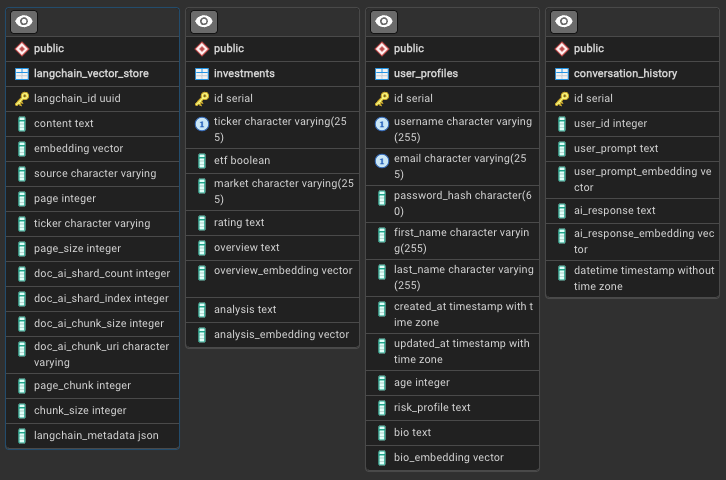
The GenWealth demo application leverages a simple schema, shown below.
|
|
|
|
|
|
|
|
#### Data
|
|
|
|
The `investment` and `user_profiles` tables are pre-populated with synthetic test data. The data was generated using a combination of Vertex AI LLM text completion models and simple algorithmic techniques. The `langchain_vector_store` table is used by the Document Ingestion Pipeline to store document text chunks and metadata, and the `conversation_history` table is optionally used by the [`llm()`](./database-files/llm.sql) function when the `enable_history` parameter is set to `true`.
|
|
|
|
### Document Ingestion Pipeline
|
|
|
|
In addition to the synthetic data provided for the demo, you can use the document ingestion pipeline to extract data from PDFs, like the [RYDE prospectus](https://storage.googleapis.com/github-repo/generative-ai/sample-apps/genwealth/sample-prospectus/RYDE.pdf).
|
|
|
|
Simply drop a PDF into the `$PROJECT_ID-docs` bucket to start analyzing it (we recommend using prospectuses, 10K's, or 10Q's that are named with the investment ticker like `GOOG.pdf` for this specific use case). That will kick off a pipeline of Cloud Functions that will ingest document chunks and metadata into the `langchain_vector_store` table, and it will write generated `overview` and `analysis` data and metadata to the `investments` table.
|
|
|
|
> NOTE: Pipeline processing time depends on the size of the PDF, ranging from 1 minute for small files to 10+ minutes for large files. The number of parallel documents you can ingest depends on your project quota (5 by default), and the size of documents is subject to the [quotas and limits](https://cloud.google.com/document-ai/quotas) defined by Document AI. The demo project using batch processing, and it was tested in files up to 15MB and 200 pages.
|
|
|
|
#### Pipeline Details
|
|
|
|
The pipeline is triggered when a file is uploaded to the `$PROJECT_ID-docs` GCS bucket, and it executes two parallel branches to showcase the differences between out-of-the-box Vertex AI Search capabilities versus a custom Retrieval Augmented Generation (RAG) approach.
|
|
|
|
##### RAG Pipeline Branch
|
|
|
|
The RAG pipeline branch executes the following steps:
|
|
|
|
1. The `process-pdf` Cloud Function extracts text from the pdf using Document AI (OCR), chunks the extracted text with LangChain, and writes the chunked text to the `langchain_vector_store` table in AlloyDB, leveraging [AlloyDB's LangChain vector store integration](https://python.langchain.com/docs/integrations/vectorstores/google_alloydb).
|
|
1. The `analyze-prospectus` Cloud Function retrieves the document chunks from AlloyDB and iteratively builds a company overview, analysis, and buy/sell/hold rating using Vertex AI. Results are saved to the `investments` table in AlloyDB, where AlloyDB generates embeddings of the `overview` and `analysis` columns to enable vector similary search.
|
|
|
|
##### Vertex AI Search Pipeline Branch
|
|
|
|
The Vertex AI S&C pipeline branch executes the following steps:
|
|
|
|
1. The `write-metadata` function creates a jsonl file in the `$PROJECT_ID-docs-metadata` GCS bucket to enable faceted search.
|
|
1. The `update-search-index` function kicks off re-indexing of the Vertex AI S&C data store to include the new file in its results.
|
|
|
|
### Middle Tier
|
|
|
|
The middle tier is written in TypeScript and hosted with `express`:
|
|
|
|
```javascript
|
|
import express from 'express';
|
|
...
|
|
const app: express.Application = express();
|
|
```
|
|
|
|
There are a simple set of REST apis hosted at `/api/*` that connect to AlloyDB via the `Database.ts` class.
|
|
|
|
```javascript
|
|
// Routes for the backend
|
|
app.get('/api/investments/search', async (req: express.Request, res: express.Response) => {
|
|
...
|
|
}
|
|
```
|
|
|
|
### Frontend
|
|
|
|
The frontend application is Angular Material using TypeScript, which is built and statically served from the root `/` by express as well:
|
|
|
|
```javascript
|
|
// Serve the frontend
|
|
app.use(express.static(staticPath));
|
|
```
|
|
|
|
### Secrets
|
|
|
|
Secrets are handled by [Secret Manager](https://cloud.google.com/security/products/secret-manager). You define the secrets for both the AlloyDB cluster and the pgAdmin interface as part of the install script. If you need to retrieve the secrets ad hoc, you can run the command below with a user that is entitled to view secrets.
|
|
|
|
```bash
|
|
gcloud secrets versions access latest --secret="my-secret"
|
|
```
|
|
|
|
## Purpose and Extensibility
|
|
|
|
The purpose of this repo is to help you provision an isolated demo environment that highlights the Generative AI capabilities of AlloyDB AI and Vertex AI. While the ideas in this repo can be extended for many real-world use cases, the demo code itself is overly permissive and has not been hardened for security or reliability. The sample code in this repo is provided on an "AS IS" BASIS, WITHOUT WARRANTIES OR CONDITIONS OF ANY KIND, and it should NOT be used for production use cases without doing your own testing and security hardening.
|
|
|
|
## Clean Up
|
|
|
|
Be sure to delete the resources you no longer need when you're done with the demo. If you created a new project for the lab as recommended, you can delete the whole project using the command below in your Cloud Shell session (NOT the pgadmin VM).
|
|
|
|
**DANGER: Be sure to set PROJECT_ID to the correct project, and run this command ONLY if you are SURE there is nothing in the project that you might still need. This command will permanently destroy everything in the project.**
|
|
|
|
```bash
|
|
# Set your project id
|
|
PROJECT_ID='YOUR PROJECT ID HERE'
|
|
gcloud projects delete ${PROJECT_ID}
|
|
```
|