---
title: Blueprints
order: 100
---
## What are Blueprints?
When you work with the Rerun Viewer, understanding blueprints is important if you want to build consistency around your Viewer experience.
*For a video overview, check out the [Blueprints video](https://www.youtube.com/embed/kxbkbFVAsBo?si=k2JPz3RbhR1--pcw) on YouTube.*
A way to think about the Rerun View is that
- The **recording** provides the actual data you are visualizing
- The **blueprint** determines how that data is displayed
Both pieces are crucial. Without a recording there is nothing to show. Without a blueprint there is no way to show it. Even when you use Rerun without explicitly loading a blueprint, the Viewer creates one automatically for you.
## What blueprints control
Blueprints give you complete control over the Viewer's layout and configuration:
- **Panel visibility**: Whether panels like the blueprint panel, selection panel, and time panel are expanded or collapsed
- **Layout structure**: How views are arranged using containers (Grid, Horizontal, Vertical, Tabs)
- **View types and configuration**: What kind of views display your data (2D/3D spatial, maps, charts, text logs, etc.) and their specific settings
- **Visual properties**: Styling like backgrounds, colors, zoom levels, time ranges, and visual bounds
In general, if you can modify an aspect of how something looks through the Viewer, you are actually modifying the blueprint.
## Application IDs: binding blueprints to data
The [Application ID](../logging-and-ingestion/recordings.md) is how blueprints connect to your data. This is a critical concept:
**All recordings that share the same Application ID will use the same blueprint.**
This loose coupling between blueprints and recordings means:
- You can keep the blueprint constant while changing the recording to compare different datasets with consistent views
- You can change the blueprint while keeping a recording constant to view the same data in different ways
- When you save blueprint changes with the Viewer, those changes apply to all recordings with that Application ID
Think of the Application ID as the "key" that binds a blueprint to a specific type of recording. If you want recordings to share the same layout, give them the same Application ID.
## Reset behavior: heuristic vs default
The Viewer provides two types of blueprint reset, accessible from the blueprint panel:
### Reset to heuristic blueprint
This generates a new blueprint automatically based on your current data. The Viewer analyzes what you've logged and creates an appropriate layout using built-in heuristics. This is useful when you want to start fresh and let Rerun figure out a reasonable layout.
### Reset to default blueprint
This returns to your programmatically specified blueprint (sent from code) or a saved blueprint file (`.rbl`). If you've sent a blueprint using `rr.send_blueprint()` or loaded a `.rbl` file, this becomes your "default." The reset button in the blueprint panel will restore this default whenever you need it.
When no default blueprint has been set, the reset button will use the heuristic blueprint instead.
## Three ways to work with blueprints
There are three complementary approaches to creating and modifying blueprints:
### 1. Interactively
Modify blueprints directly in the Viewer UI:
- Drag and drop views to rearrange them
- Add new views or containers with the "+" button
- Split views horizontally, vertically, or into grids
- Change container types (Grid, Horizontal, Vertical, Tabs)
- Rename views and containers
- Show, hide, or remove elements
This is the fastest way to experiment with layouts. See [Configure the Viewer](../../getting-started/configure-the-viewer.md) for a complete guide.
### 2. Save and load files
Save your blueprint configuration to `.rbl` files:
- Use "Save blueprint…" from the file menu to save your current layout
- Load blueprints with "Open…" or by dragging `.rbl` files into the Viewer
- Share blueprint files with teammates to ensure everyone sees data the same way
- Reuse blueprints across sessions and different recordings (with the same Application ID)
Blueprint files are portable and can be version-controlled alongside your code.
### 3. Programmatically
Write blueprint code that configures the Viewer automatically:
- Define layouts in Python using `rerun.blueprint` APIs
- Send blueprints with `rr.send_blueprint()` or via `default_blueprint` parameter
- Generate layouts dynamically based on your data
- Perfect for creating consistent views for specific debugging scenarios
For example, you might send different blueprints automatically based on detected issues in your application (e.g., a robot enters an error state and surfaces the correct blueprint to help you debug that)
```python
import rerun as rr
import rerun.blueprint as rrb
if robot_error:
# Show diagnostic views for debugging
blueprint = rrb.Grid(
rrb.Spatial3DView(name="Robot view", origin="/world/robot"),
rrb.TextLogView(name="Error Logs", origin="/diagnostics"),
rrb.TimeSeriesView(name="Sensor Data", origin="/sensors"),
)
rr.send_blueprint(blueprint, make_active=True)
```
See [Configure the Viewer](../../getting-started/configure-the-viewer/navigating-the-viewer.md#programmatic-blueprints) for detailed examples and our guide on how to [build a blueprint programmatically](../../howto/visualization/build-a-blueprint-programmatically.md).
## Common use cases
### Debugging specific scenarios
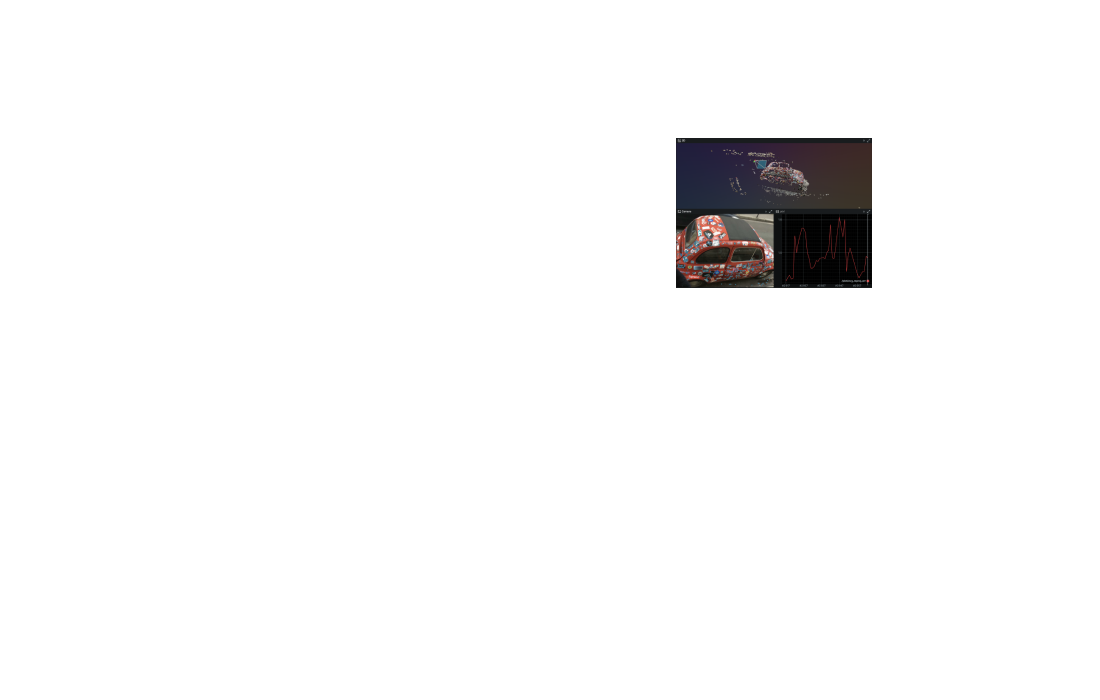
Create blueprints optimized for diagnosing particular issues. For example, when debugging robot perception, you might want a blueprint that shows:
- The camera view in 2D
- The 3D world with detected objects
- Detection confidence scores in a time series chart
- Error logs in a text panel
### Sharing layouts with teams
Save a blueprint file and share it with your team. Everyone loading that blueprint with matching recordings will see the data the same way, making it easier to discuss findings and collaborate.
### Templating for different data types
Create different blueprint templates for different types of recordings. For example:
- A blueprint for autonomous vehicle data that focuses on map views and sensor fusion
- A blueprint for robotics manipulation that emphasizes joint angles and gripper cameras
- A blueprint for computer vision that shows side-by-side comparisons of different models
### Dynamic Viewer configuration
Generate blueprints programmatically based on runtime conditions. For instance, automatically create one view per detected anomaly, or adjust the layout based on how many data sources are active.
## Blueprint architecture
Under the hood, blueprints are just data. They are structured using the same [Entity Component System](../logging-and-ingestion/entity-component.md) as your recordings, but with blueprint-specific archetypes and a separate blueprint timeline. This architecture provides several advantages:
- **Anything you modify in the Viewer can be saved and shared** as a blueprint file
- **Blueprints can be produced programmatically** using just the Rerun SDK without depending on the Viewer
- **Blueprint data is fully expressive**, enabling [blueprint overrides](customize-views.md#component-mappings) that are as powerful as logged data
- **The full time-series nature** simplifies future features like snapshots and undo/redo
- **Debugging tools for Rerun data** can inspect blueprint state just like recording data
### Viewer operation
The Viewer is designed to be deterministic. Every frame, the Viewer:
1. Takes the active blueprint and active recording
2. Queries container and view archetypes from the blueprint at the current blueprint timeline revision
3. Uses those view specifications to query the data needed from the recording
4. Renders the results
5. Queues any user interactions as new blueprint events on the blueprint timeline
This means the Viewer output is a deterministic function of the blueprint and the recording, with minimal persisted state between frames.
## Next steps
- **Learn to use blueprints**: See [Configure the Viewer](../../getting-started/configure-the-viewer.md) for hands-on tutorials covering interactive, file-based, and programmatic workflows
- **Understand the UI**: Check the [Blueprint Panel Reference](../../reference/viewer/blueprints.md) for details on UI controls
- **Customize visualizations**: Learn about [Visualizers and Overrides](customize-views.md) for advanced per-entity customization
- **Explore the API**: Browse the [Blueprint API Reference](https://ref.rerun.io/docs/python/stable/common/blueprint_apis/) for programmatic control (Python)