 wehub-resource-sync
7df9ebf22c
wehub-resource-sync
7df9ebf22c
2.9 KiB
Plugins & Marketplace
Much of GeoLibre's functionality ships as plugins. The Plugins menu activates built-in plugins, and the Manage Plugins dialog (under Settings) installs, updates, and removes external plugins from a curated registry.
The Plugins menu
The Plugins menu lists every available plugin under Activate plugin. Click a plugin to toggle it on or off; a check mark shows which are active. Built-in plugins include the Layer Control, Basemaps, Components (Measure, Bookmark, Legend, Colorbar, Minimap, View State, Search, Print, HTML), GeoEditor, Time Slider, Layer Swipe, Street View, LiDAR Viewer, Overture Maps, GeoAgent, Historical Imagery, and the federal Web Services group. See Data Integrations.
For plugins that add an on-map control, a submenu lets you position the control in any corner: top left, top right, bottom left, or bottom right.
Manage Plugins
Open Settings → Manage Plugins to browse the marketplace. The dialog is modeled on QGIS, with sections for All, Installed, Not installed, Upgradeable, and Settings.
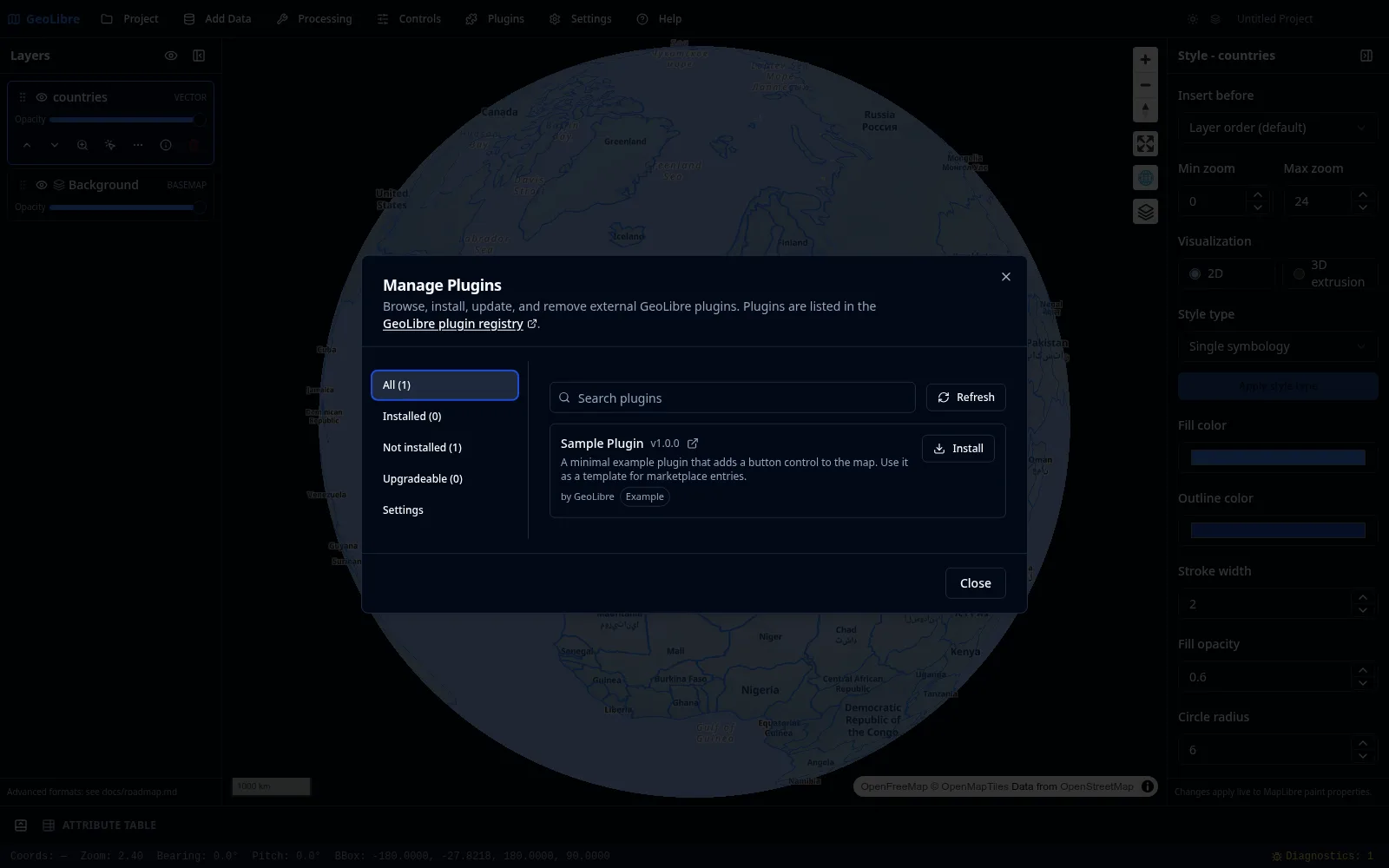
- Search the registry and Install an entry with one click. Installation records the plugin's manifest URL and registers it immediately, with no restart.
- Update appears when a newer version is published; it re-fetches and re-registers the plugin in place, keeping the old version if the update fails.
- Uninstall (after a confirmation) unregisters the plugin at runtime and tears down any active control.
- The Settings section manages additional plugin sources: extra local directories and manual manifest URLs.
Compatibility is checked against each entry's minGeoLibreVersion, so incompatible plugins are flagged rather than installed.
!!! note "Trust model"
The registry is a curated allowlist, manifests require HTTPS (or HTTP on localhost, 127.0.0.1, or [::1] for development), and every install requires explicit consent, because plugins run as trusted code. The curated registry and the install confirmation are the primary safeguards.
Where plugins come from
- Curated registry: the marketplace fetches a versioned JSON registry, hosted by default at
plugins.geolibre.app. The registry and plugin bundles live in the opengeos/geolibre-plugins repository. - Manifest URL: point the Settings section at any
plugin.jsonmanifest URL. - Local directory: load a plugin from a local folder (desktop app).
- Bundled drop-ins: plugins placed in
public/plugins/<id>/load automatically in a build.
Writing your own plugin
To build a plugin, see Reference → Plugin API for the TypeScript interfaces, the plugin.json manifest contract, and the list of built-in plugins.