 wehub-resource-sync
Weather MCP Server
This is a sample MCP Server in Python implementing weather tools with mock responses. It can be used as a scaffold for your own MCP Server. It includes the following features:
- Weather Tool: A tool that provides mocked weather information based on the given location.
- Connect to Agent Builder: A feature that allows you to connect the MCP server to the Agent Builder for testing and debugging.
- Debug in MCP Inspector: A feature that allows you to debug the MCP Server using the MCP Inspector.
Get started with the Weather MCP Server template
Prerequisites
To run the MCP Server in your local dev machine, you will need:
- Python
- (Optional - if you prefer uv) uv
- Python Debugger Extension
Prepare environment
There are two approaches to set up the environment for this project. You can choose either one based on your preference.
Note: Reload VSCode or terminal to ensure the virtual environment python is used after creating the virtual environment.
| Approach | Steps |
|---|---|
Using uv |
1. Create virtual environment: uv venv 2. Run VSCode Command "Python: Select Interpreter" and select the python from created virtual environment 3. Install dependencies (include dev dependencies): uv pip install -r pyproject.toml --extra dev |
Using pip |
1. Create virtual environment: python -m venv .venv 2. Run VSCode Command "Python: Select Interpreter" and select the python from created virtual environment 3. Install dependencies (include dev dependencies): pip install -e .[dev] |
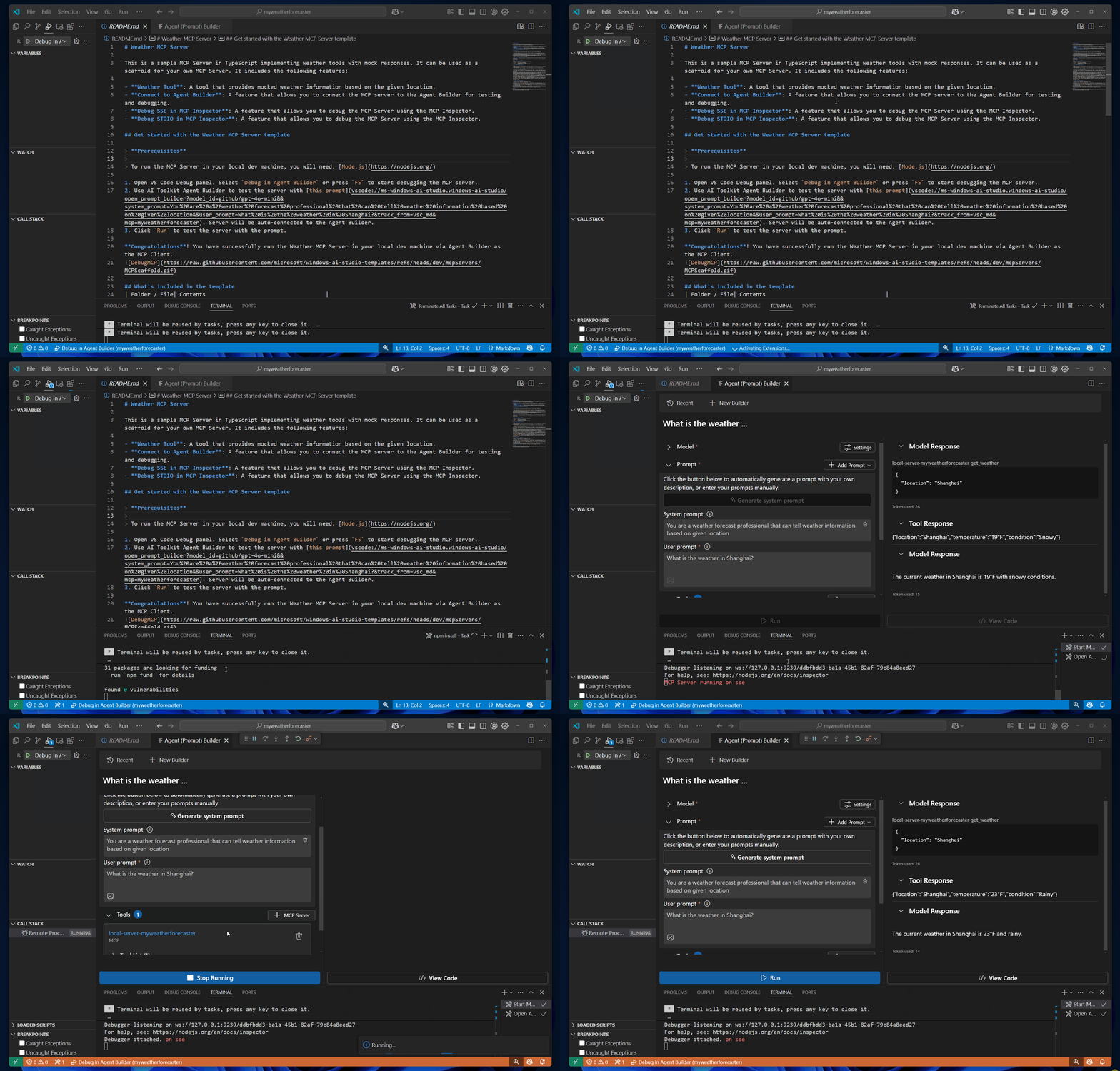
After setting up the environment, you can run the server in your local dev machine via Agent Builder as the MCP Client to get started:
- Open VS Code Debug panel. Select
Debug in Agent Builderor pressF5to start debugging the MCP server. - Use Microsoft Foundry Toolkit Agent Builder to test the server with this prompt. Server will be auto-connected to the Agent Builder.
- Click
Runto test the server with the prompt.
Congratulations! You have successfully run the Weather MCP Server in your local dev machine via Agent Builder as the MCP Client.
What's included in the template
| Folder / File | Contents |
|---|---|
.vscode |
VSCode files for debugging |
.aitk |
Configurations for Microsoft Foundry Toolkit |
src |
The source code for the weather mcp server |
How to debug the Weather MCP Server
Notes:
- MCP Inspector is a visual developer tool for testing and debugging MCP servers.
- All debugging modes support breakpoints, so you can add breakpoints to the tool implementation code.
| Debug Mode | Description | Steps to debug |
|---|---|---|
| Agent Builder | Debug the MCP server in the Agent Builder via Microsoft Foundry Toolkit. | 1. Open VS Code Debug panel. Select Debug in Agent Builder and press F5 to start debugging the MCP server.2. Use Microsoft Foundry Toolkit Agent Builder to test the server with this prompt. Server will be auto-connected to the Agent Builder. 3. Click Run to test the server with the prompt. |
| MCP Inspector | Debug the MCP server using the MCP Inspector. | 1. Install Node.js 2. Set up Inspector: cd inspector && npm install 3. Open VS Code Debug panel. Select Debug SSE in Inspector (Edge) or Debug SSE in Inspector (Chrome). Press F5 to start debugging.4. When MCP Inspector launches in the browser, click the Connect button to connect this MCP server.5. Then you can List Tools, select a tool, input parameters, and Run Tool to debug your server code. |
Default Ports and customizations
| Debug Mode | Ports | Definitions | Customizations | Note |
|---|---|---|---|---|
| Agent Builder | 3001 | tasks.json | Edit launch.json, tasks.json, __init__.py, mcp.json to change above ports. | N/A |
| MCP Inspector | 3001 (Server); 5173 and 3000 (Inspector) | tasks.json | Edit launch.json, tasks.json, __init__.py, mcp.json to change above ports. | N/A |
Feedback
If you have any feedback or suggestions for this template, please open an issue on the Microsoft Foundry Toolkit GitHub repository