 wehub-resource-sync
Analyzing images and text with Gemini using BigQuery & Remote Functions
| Author(s) | Shane Glass |
Overview
This repo provides an example of how to use Gemini, Google's largest and most capable AI model, to analyze your BigQuery data. BigQuery and Remote Functions can be used to analyze images and text input using the Gemini API in Vertex AI on Google Cloud. The following instructions should help you get started.
Calling Gemini using SQL
This repo allows you to pass requests to Gemini using SQL and get the results back like you would for any other BigQuery query. This approach has several advantages:
- It allows users who are familiar with SQL to leverage the power of Gemini without needing to write additional code
- You can more easily analyze a large batch of data rather than having to make individual requests for each image or text prompt
- You don't need to export your data from BigQuery before you can analyze it with Gemini
About this demo
We've created a Terraform module that deploys all the necessary resources to call the Gemini API in Vertex AI using SQL in BigQuery.
After the module is deployed, you will have access to two BigQuery Remote Functions:
- Analyze images and text (multimodal input) using
gemini_bq_demo_image: This remote function takes an image from GCS as an input and prompts the Gemini model to create a brief description of the image - Analyze text using
gemini_bq_demo_text: This remote function takes text in a BigQuery table and uses the text directly as prompts for the Gemini model to return a response
You will also have access to two BigQuery stored procedures which allow you to easy test each remote function using real image and text data:
image_query_remote_function_sp: This SQL query uses thegemini_bq_demo_imageremote function to send a list of image URIs stored in an object table (deployed as part of the module) along with a prompt to Geminitext_query_remote_function_sp: This SQL query uses thegemini_bq_demo_textremote function to send a sample BigQuery table with pre-written text prompts (deployed as part of the module) to Gemini
Getting Started
Deploying the infrastructure
Note: Though using a new Google Cloud project for this example is not a requirement, it might be easiest to use a new Google Cloud project for this. This makes cleanup much easier, as you can delete the whole project to ensure all assets are removed and it ensures no potential conflicts with existing resources. You can also remove resources by running terraform destroy after you deploy the resources, but it will also disable the associated APIs.
1. Clone this repo in Cloud Shell
You'll need to set your Google Cloud project in Cloud Shell, clone this repo locally first, and set the working directory to this folder using the following commands.
gcloud config set project <PROJECT ID>
git clone https://github.com/GoogleCloudPlatform/generative-ai/
cd ./generative-ai/gemini/use-cases/applying-llms-to-data/using-gemini-with-bigquery-remote-functions
2. Enable the Cloud Resource Manager API
Check to make sure the Cloud Resource Manager API is enabled
3. Initialize Terraform
First, initialize Terraform by running
terraform init
4. Review resources
Review the resources that are defined in the configuration:
terraform plan
5. Deploy the Terraform script
terraform apply
When you're prompted to perform the actions, enter yes. Terraform will prompt you to provide your project ID and region. This sample has been tested using region us-central1. Terraform will display messages showing the progress of the deployment.
After all the resources are created, Terraform displays the following message:
Apply complete!
The Terraform output also lists the following additional information that you'll need:
- The link to open the BigQuery editor to invoke the
image_query_remote_function_spstored procedure that analyzes the sample images provided - The link to open the BigQuery editor to invoke the
text_query_remote_function_spstored procedure that analyzes the sample text prompts provided
If you need to see your Terraform outputs again, simply enter terraform output into your command line.
Analyzing sample data with your new deployment
Now that the resources have been deployed, your BigQuery Remote Functions are ready to be used in SQL queries.
1. Analyze text and images (multimodal)
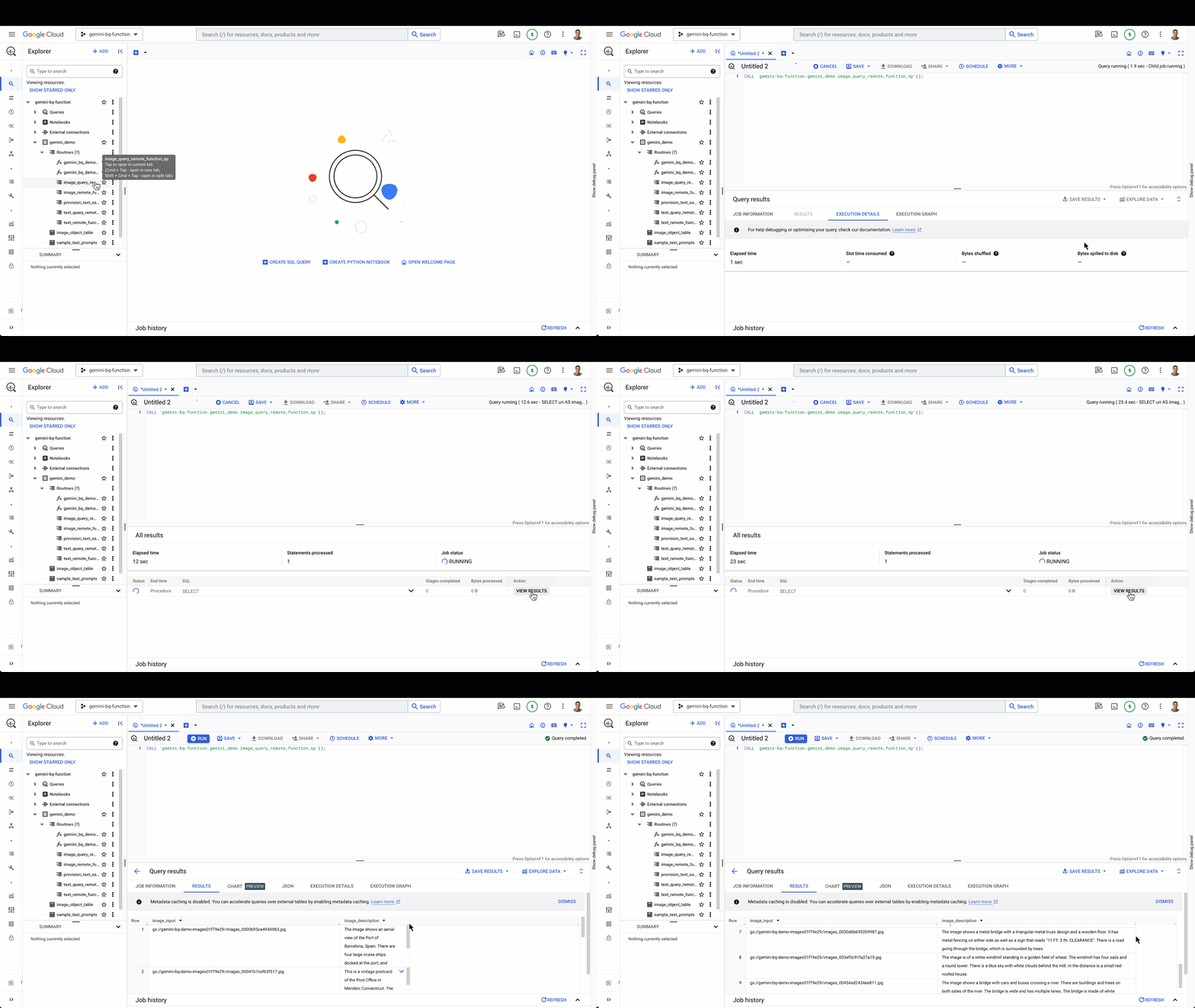
Gemini will analyze the sample images when you invoke the image_query_remote_function_sp stored procedure. Simply click Invoke stored procedure for the stored procedure, then click Run for the resulting query to get the image descriptions generated by Gemini through your Remote Function.
2. Analyze text only
Gemini will analyze the prewritten text prompts when you invoke the text_query_remote_function_sp stored procedure. Simply click Invoke stored procedure, then click Run in the resulting query to get the responses generated by Gemini through your Remote Function.

How it works
Architecture Diagrams
Image analysis
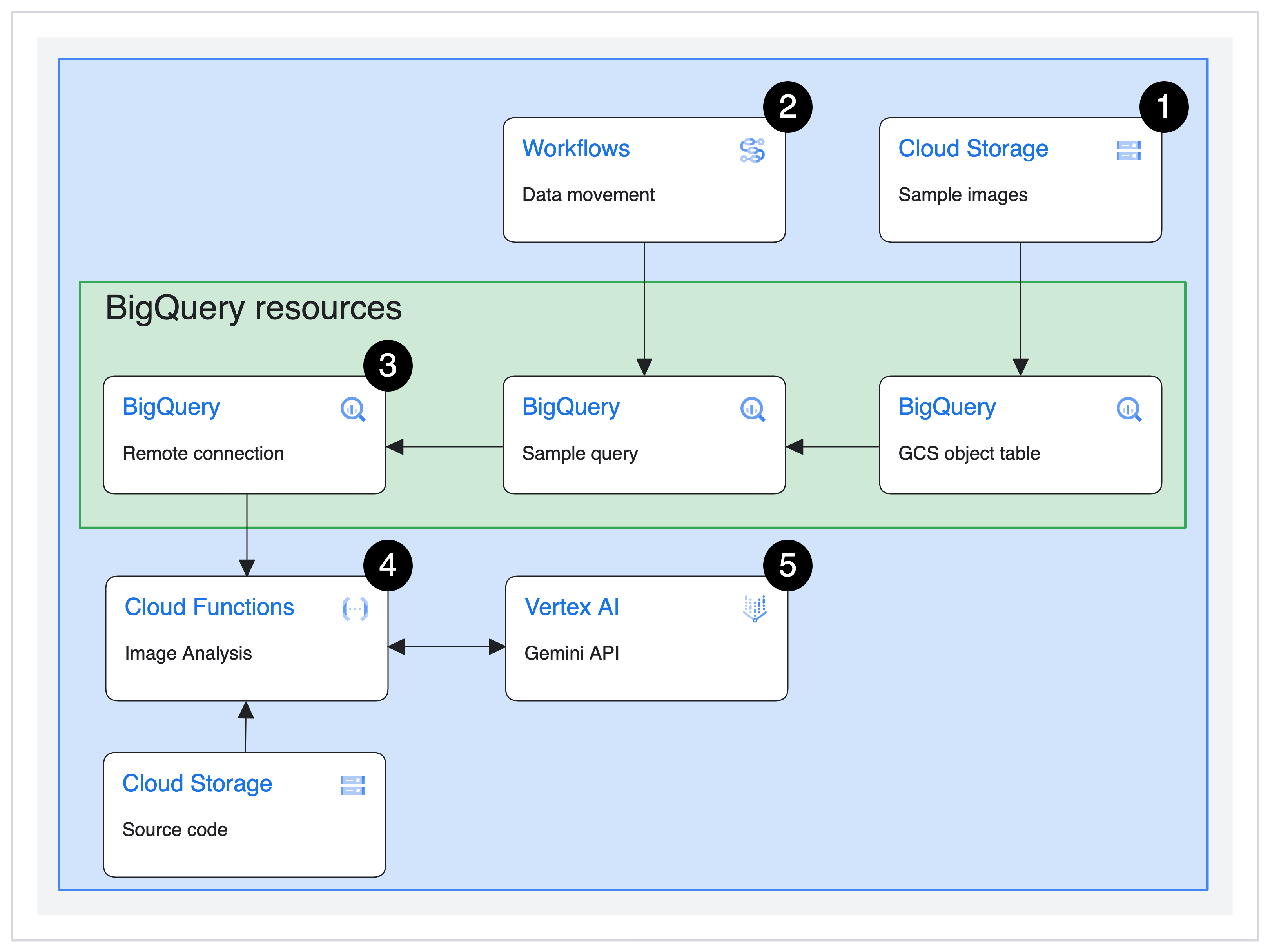
- Sample images are uploaded to a Cloud Storage bucket and a GCS object table is created in BigQuery
- Cloud Workflows creates a stored procedure in BigQuery that contains the sample query, which references the object table created in step 1 to pass images to the remote function for analysis using the Gemini API in Vertex AI
- The stored procedure from step 2 is used to invoke the Cloud Function through a BigQuery connection
- The Cloud Function analyzes the sample images by passing them to the Gemini API in Vertex AI (step 5) to get a brief description of the sample images and returns results from the Gemini API in Vertex AI as query results
Text analysis
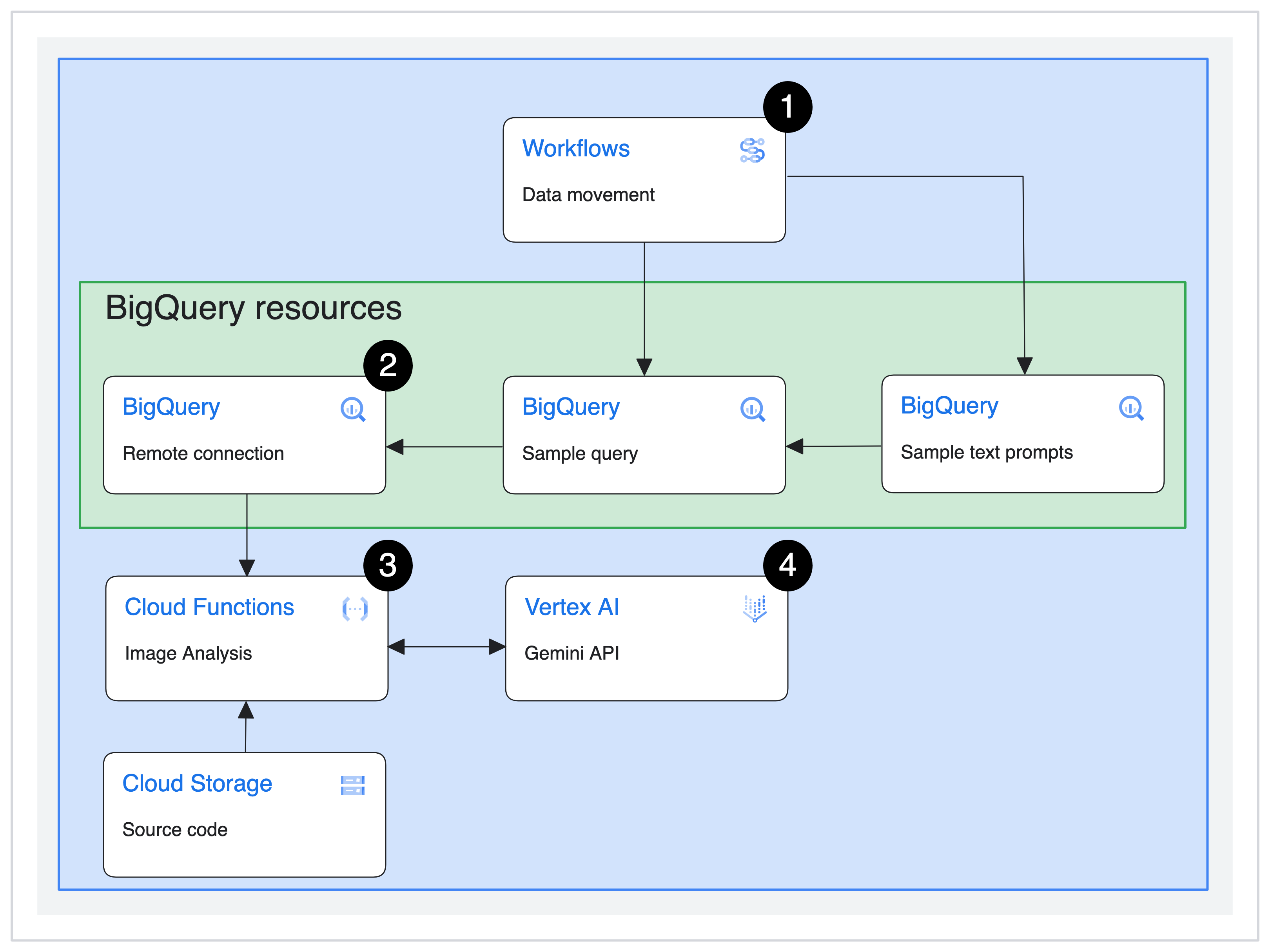
- Cloud Workflows creates a stored procedure in BigQuery that contains the sample query and provisions the
sample_text_promptstable, which contains sample text prompts to describe various landmarks. The sample query passes these prompts to the remote function for analysis using the Gemini API in Vertex AI - The stored procedure from step 2 is used to invoke the Cloud Function through a BigQuery connection
- The Cloud Function analyzes the text input from the sample text by passing them to the Gemini API in Vertex AI (step 4) to get generate a text response to each prompt and returns results from the Gemini API in Vertex AI as query results
Pricing Estimation
Installing this demo (by running terraform apply in the Cloud Shell CLI) and running the stored procedures for text and image analysis 4 times each day will cost approximately $0.06 USD per month. See the Google Cloud Pricing Calculator for more details. The total monthly cost will vary as your usage varies, including how often you deploy and teardown this demo.
NOTE: Charges for Multimodal model consumption in Vertex AI take effect on January 15, 2024. We estimate running this demo 4 times per day will increase the total cost by $3.73 USD per month. See the Vertex AI pricing page for Generative AI for full details. Below is a breakdown of this estimate:
-
Text analysis
- $0.02/month for Text Input
- $0.23/month for Text Output
-
Image analysis
- $3.30/month for Image Input
- $0.18/month for Text Output
Keep in mind that generative AI models like Gemini are non-deterministic, so associated costs will vary based on the output length and cannot be definitively estimated.
Make it your own
You can adapt this demo for your own use case! Check out the instructions below for image and text analysis.
Analyze images
You can get started analyzing any images you have uploaded to Cloud Storage by:
-
Create a Cloud Storage object table
If your bucket is stored in the same region that you deployed this demo, you should be able to reuse the existing BigQuery connection. If not, you will likely have to create a new one.
-
Modify the
contextvariable on line 40 of the Cloud FunctionYou can do this by editing the
gemini-bq-demo-imagethat was deployed. Click the Edit button at the top of the Function Details page, then click Next to see the in-line editor. Change the value of thecontextvariable to provide tell Gemini what it should do with your images, then click Deploy.Check out this sample notebook for inspiration and ideas of what you can ask Gemini to do with an image.
-
Update the
image_query_remote_function_spstored procedure and runUpdate line 5 of the stored procedure to reference the object table you created in step 1 and run the query.
Analyze text
You can get started by analyzing your own text inputs without having to modify the existing Cloud Function. Simply replace the text_prompt in line 3 of the text_query_remote_function_sp stored procedure with whatever text you want to analyze. You can enter a single string of text or you can reference a column of text prompts from a BigQuery table. If you are using a column from a BigQuery table, be sure to update the table reference on line 5 of the stored procedure.
Clean up
After you are finished with the demo, you can delete all the resources you created with the following steps:
-
Update the
variables.tffileChange the default value for the
force_destroyvariable fromfalsetotrue. Change the default value for thedeletion_protectionvariable fromfalsetotrue. -
Run
terraform applyThis applies the changes you made in step 1 to your resources so they can be easily deleted.
-
Delete the BigQuery dataset
Run the following command in your CLI to delete the BigQuery dataset created:
bq rm -r -f -d gemini_demo -
Run
terraform destroyThis deletes all the remaining resources you created.