 wehub-resource-sync
Vertex AI Search & Flutter Demo
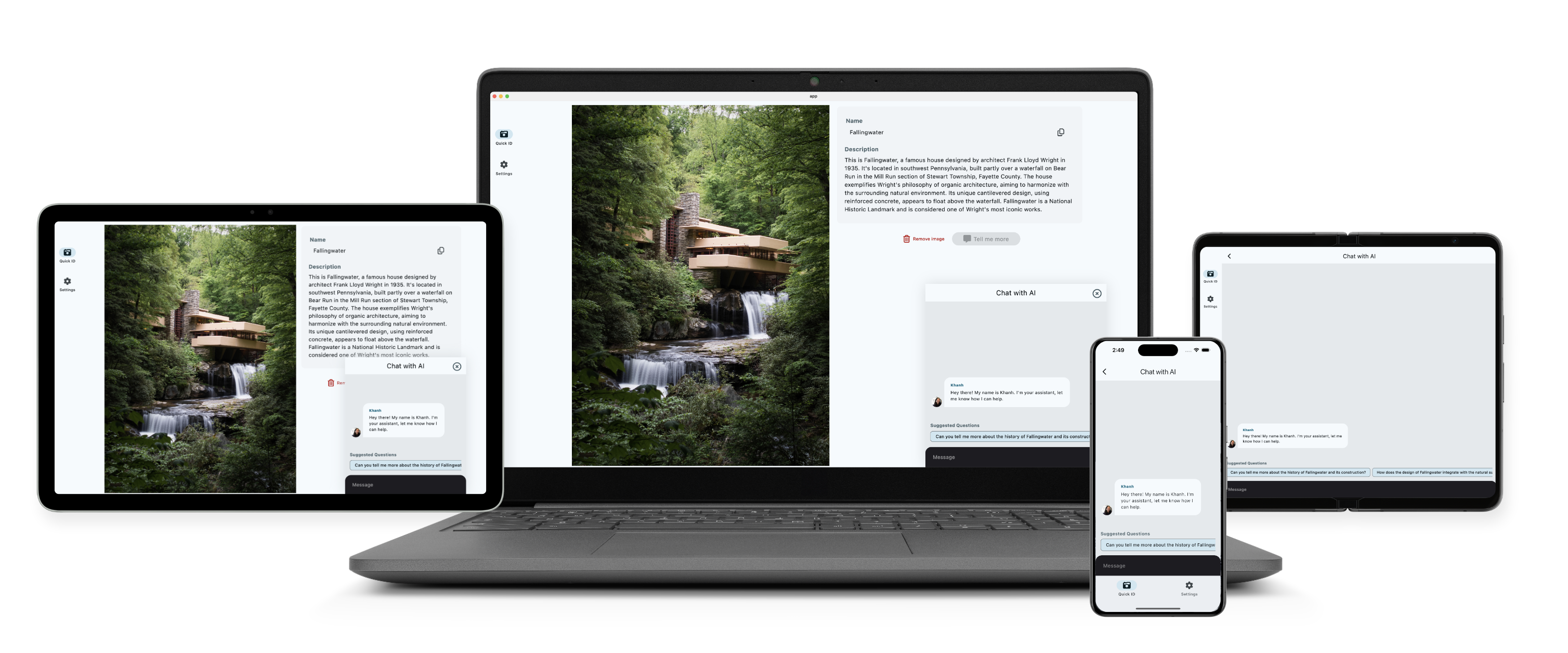
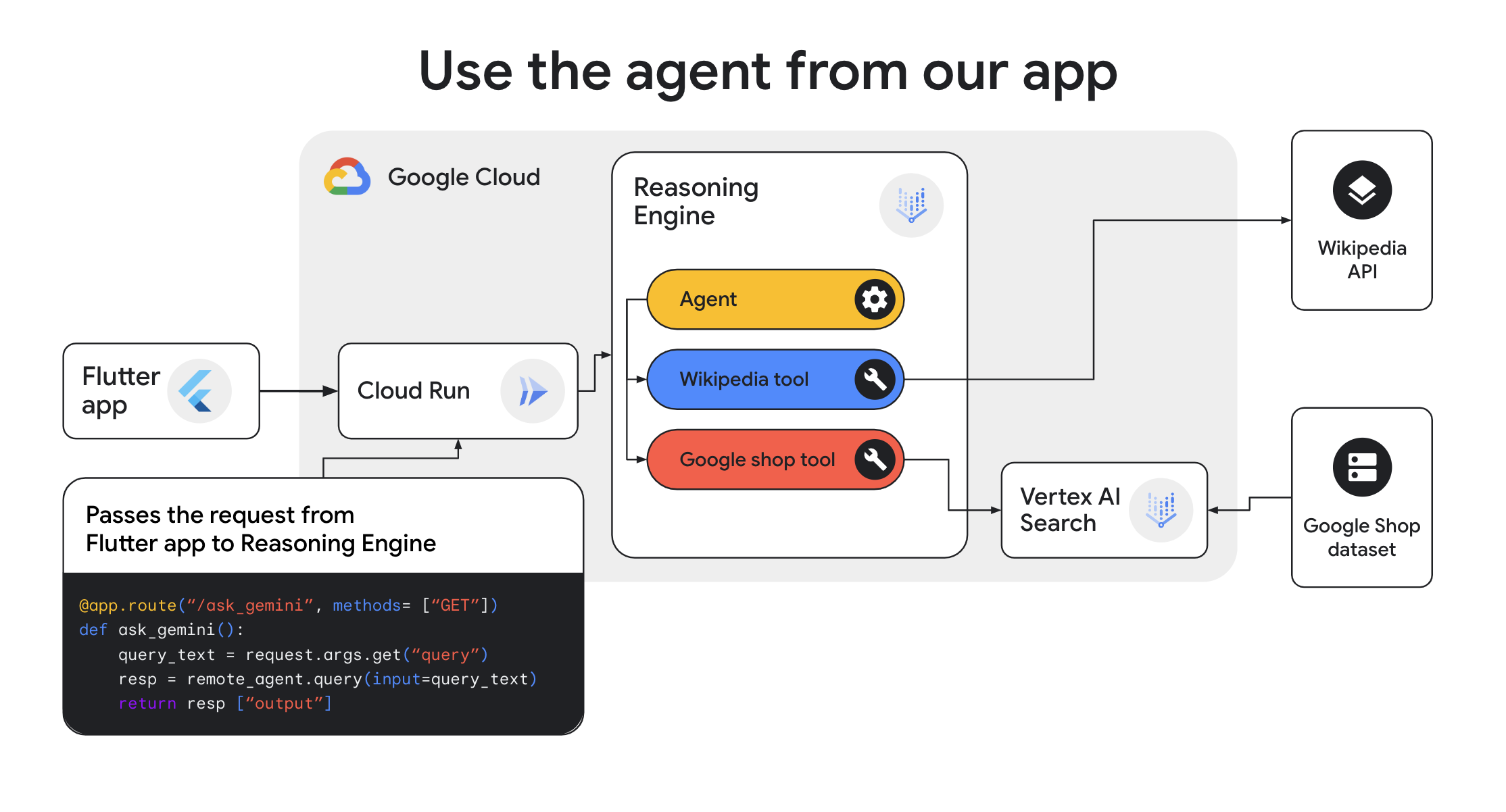
This project is a demo that integrates a Vertex AI Agent with a multi-platform Flutter app. Flutter is used as the client app framework, Vertex AI Search is used as a vector DB, and Reasoning Engine helps us build and deploy an agent with Agent Engine.
Users can run the Flutter app and take or upload a photo of a landmark. The app identifies the subject name and provides a brief description.
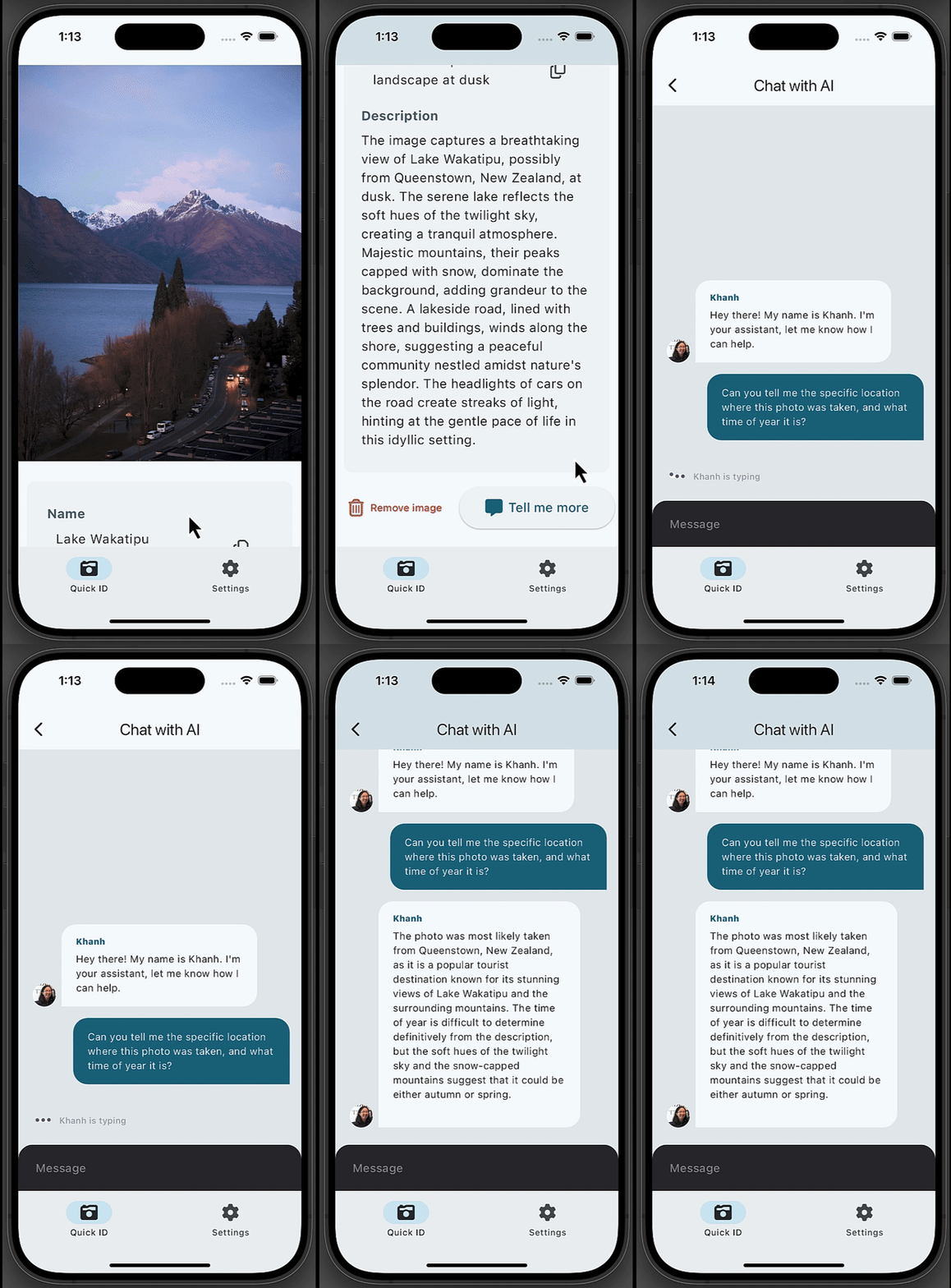
To learn more about the subject of the photo, tap "tell me more" to chat with Khanh, an AI agent build built with Vertex AI Search, and ask follow-up questions about the history of subject in the photo based on information Wikipedia.
The agent can also identify merchandise from the Google Merchandise Store and provide product name, description, pricing, and purchase link by referencing a Google Merchandise store dataset.
Note
Check out the Google I/O 2024 talk for a full walkthrough: Build generative AI agents with Vertex AI Search and Flutter.
Demo
Getting Started
Preparing Vertex AI Search search app
- Create a search data store on Vertex AI Search.
- On the Console of your Google Cloud project, open
Agent Builder>Data Stores>CREATE DATA STORE>Cloud Storage>Structured data (JSONL). - At
Select a folder or filechooseFILE, and entergcp-samples-ic0-ag/src/google_merch_shop_items.json. ClickCONTINUE. - At
Review schemapage, clickCONTINUE. - In
Configure your data storepage, chooseLocation of your data storeasusand enterYour data store nameasgms. - Click
CREATE.
-
Check the data store ID. Open
Data Storesand clickgms. Make sure theNumber of documentsis 204 items. Take a memo of theData store ID. This will be the search engine ID. -
Create a search app.
- On the Console, open
Agent Builder>Apps>CREATE APP. ChooseSearch. - On
Search app configuration, opt outEnterprise edition featuresandAdvanced LLM featuresoptions. - Enter
Your app nameasgms_test,External nameas your company name, andLocation of your appasus. - Click
CONTINUE. OnData Storespage, choosegmsand clickCREATE. This will start building a search index with the gms data store which will take about 5 minutes.
- Preview the app. After 5 minutes, open
Previewand typeDinoon the search box. You should see the search results with Chrome Dino related items.
Building & deploying the agent with Vertex AI Search
-
Deploy a Cloud Run app: Edit
/ag-web/app/app.pyand/ag-web/app/deploy.shand set the project ID, GCS bucket name and the search engine ID. Rundeploy.shto deploy the Run app. Openag-webapp on the Cloud Run console, and find the hostname (egag-web-xxxxxx.a.run.app). -
Deploy a Reasoning Engine agent: Open Cloud Workbench and upload
/ag-web/ag_setup_re.ipynb. Open the Notebook and edit theGOOGLE_SHOP_VERTEXAI_SEARCH_URLwith the Run hostname. Run the Notebook from the start to deploy the agent to the Reasoning Engine runtime. From the output on the deployment, find the reasoning engine ID. The output format isprojects/PROJECT_ID/locations/LOCATION/reasoningEngines/REASONING_ENGINE_ID. -
Redeploy the Cloud Run app: Edit
/ag-web/app/app.pyand set theREASONING_ENGINE_ID. Run/ag-web/app/deploy.shto redeploy it.
Running the Flutter App
-
Ensure that you have Flutter set up on your machine.
-
Flutter enables building multiplaform apps, so this app has been built to be run on iOS, Android, web, and desktop. Make sure to install any preferred target platform (aka where you want to run the app) requirements such as the iOS Simulator, Android Emulator, an Android phone, Chrome browser, etc.)
-
Change directory into the Flutter project using
cd app -
Set up a Firebase project and connect it to this Flutter app by following step 1 in these instructions. Only complete Step 1! Don't add the Vertex AI for Firebase Dart SDK because this source code already adds it as a dependency.
-
Update the variable CloudRunHost in
app/lib/config.dartwith your Cloud Run endpoint host. -
On the terminal, run
flutter pub getto get all project dependencies. -
Run the app using
flutter run -d <device-id>where<device-id>is the ID for an available device.
Tip
Get available devices by running
flutter devicesex:AA8A7357,macos,chrome.
Using the app
-
Once the app is running, select an image for analysis. Once the image subject has been identified click the "tell me more" button to start an Agent chat session.
-
[Optional] Running the app on a mobile device with a camera? You can enable the feature for taking photos directly within the app. In
lib/functionality/adaptive/capabilities.dartsetCapabilities.hasCameratotruelike so:
Before
static bool get hasCamera {
  return false;
}
After
static bool get hasCamera {
  return true;
}
Tech stack
- Vertex AI Search
- Flutter
- Cloud Run
- Vertex AI for Firebase Dart SDK
App Architecture
Made with ❤️ by Kaz Sato & Khanh Nguyen